How to create a WiFi QR code
A WiFi QR code lets guests join your network by scanning instead of typing a password. Here is the whole flow, plus the few things that decide whether the code still works once it is printed and stuck to a table.
-
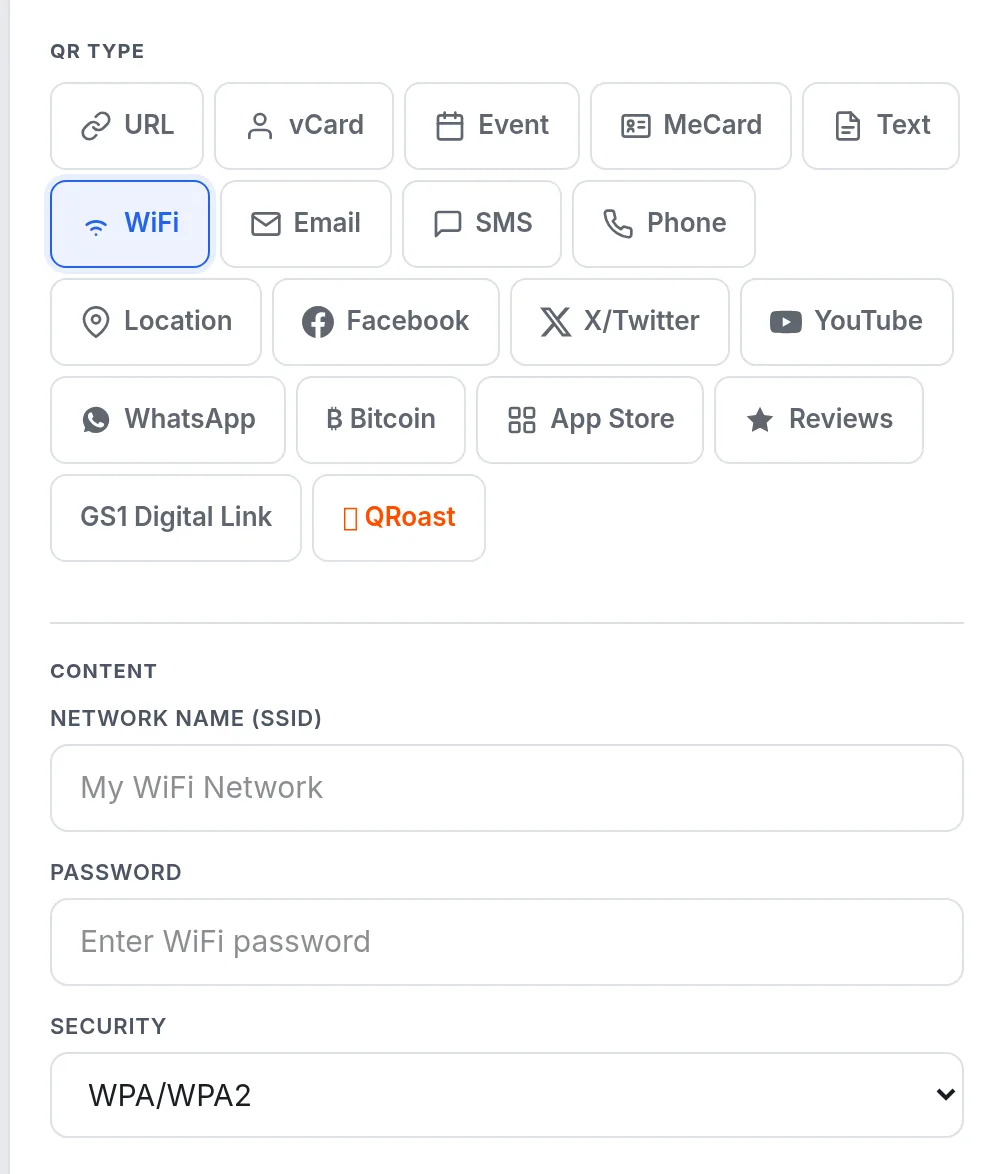
1. Choose the WiFi type and enter the network details
Open the WiFi QR code generator and type the network name (SSID) exactly as it appears in your router settings, capitals included. Add the password and leave security on WPA/WPA2 unless your network is older or open.
-
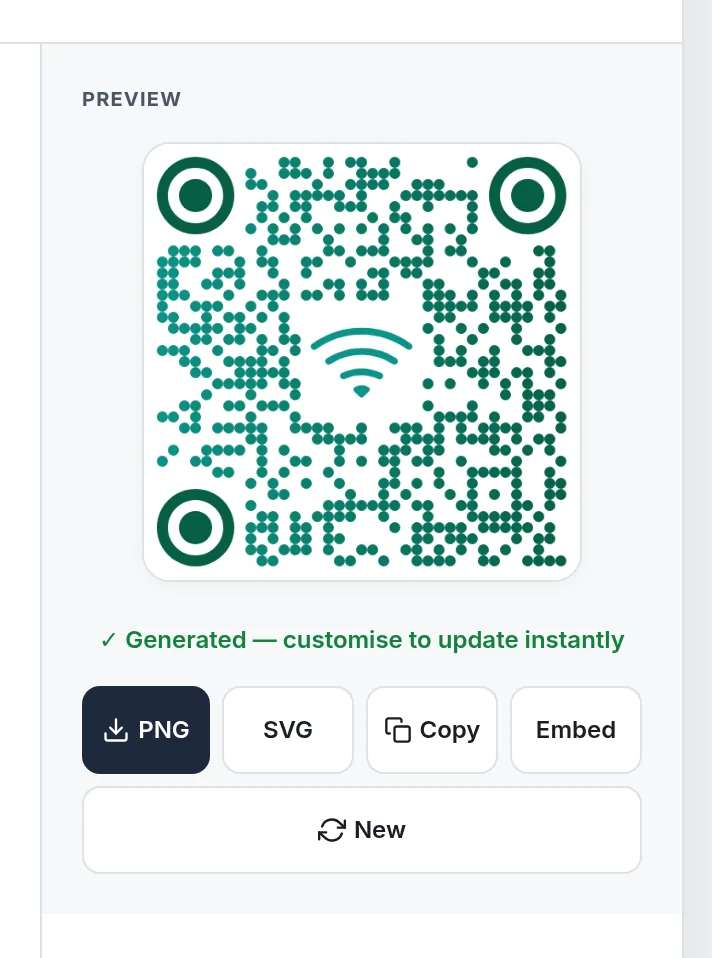
2. The code appears as you type
There is no submit step: the code redraws with every keystroke. If the preview stays blank, a required field is still empty. Both the network name and the password are stored inside the pattern itself, never on our servers.
-
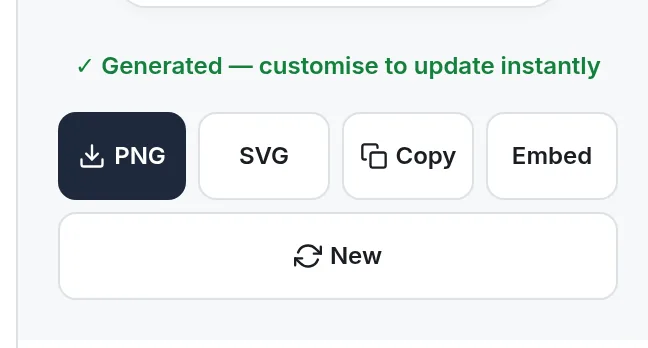
3. Download PNG for print, or SVG for a designer
Use PNG for anything you print yourself and SVG when a designer needs to scale it. Print one copy first and test-scan it from the distance a guest will hold their phone before you laminate a batch.
What to check before you print
- Test with two phones - one iPhone, one Android, from the distance a guest will actually scan.
- Size and contrast - roughly 1 cm of code per 10 cm of reading distance, dark modules on a light background, with a clear margin on all four sides.
- Where it goes - counters and table tents work well; avoid strong glare, spotlight reflections and glass.
- One line of instruction - Scan to join the WiFi saves a lot of explaining.
When to use a dynamic WiFi code instead
A static WiFi code is free and never expires, but the password is baked into the pattern: change the password and every printed copy dies. If you laminate codes or print them in bulk, use a dynamic QR code so you can update what the code points at without reprinting, and see how many guests scanned it.
Frequently asked questions
Do guests need an app to scan a WiFi QR code?
No. Current iPhones and Android phones open the camera, recognise the network and offer to join. Older handsets may need a QR reader, but no app of ours is involved.
Does the WiFi password stay private?
The password is stored inside the QR pattern itself, not on our servers. Anyone who photographs the code can read the network credentials, so place it where guests rather than passers-by can see it.
What if my network has no password?
Match the security field to your router: none for an open network, or WEP for very old hardware. An open network works, but anyone in range can join it.
Will the printed code still work if I change the router?
A static code cannot change: if the network name or password changes, reprint it. A dynamic code lets you update the destination instead, which is what we recommend for laminated or bulk-printed codes.
Create your WiFi QR code
Free, no sign-up, no watermark. Print it, test-scan it, done.